
Files that pass the form's rules, in eight steps
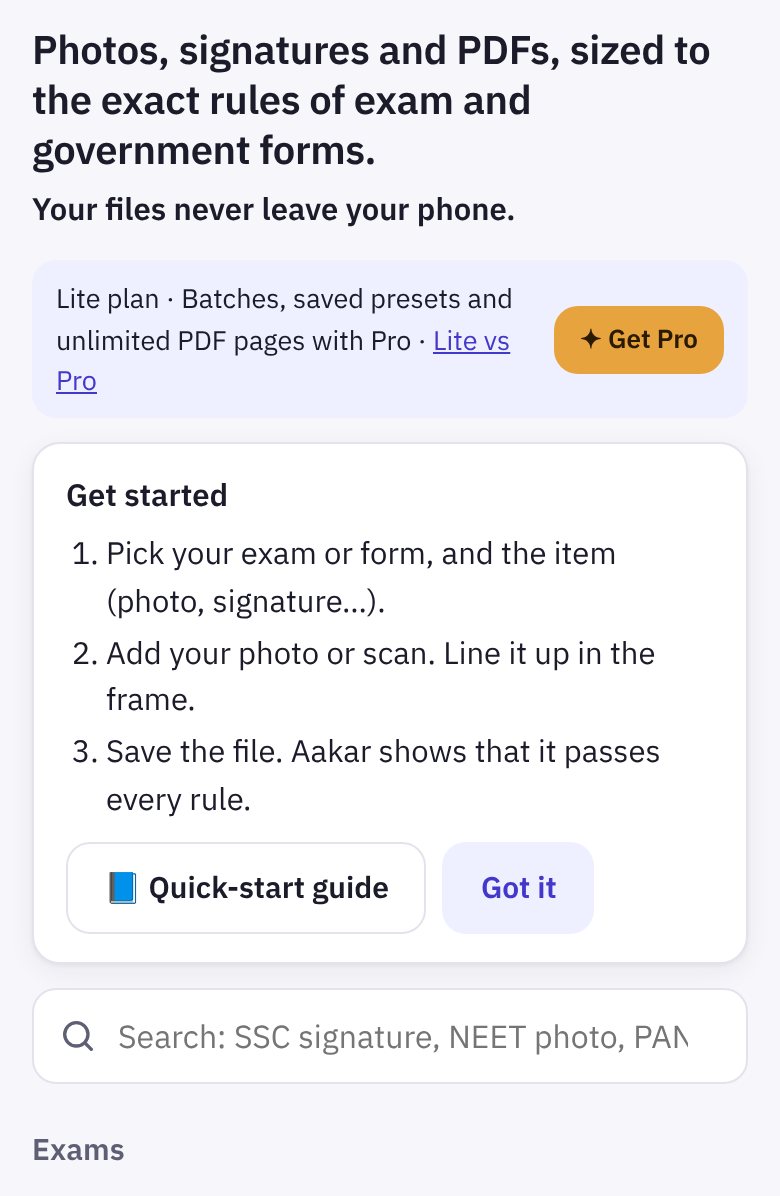
Pick your exam or form, add your photo, signature or PDF, and Aakar makes a file that meets every rule: pixels, KB, format and DPI. Every rule comes from the official notice. Everything happens on your phone: your files are never uploaded.
- Every exam and form preset, one file at a time, with a pass check
- Compress a PDF, custom sizes, JPGs to PDF up to 3 pages; no watermarks
- Batches: many photos or signatures at once, saved as one ZIP
- Your own saved presets, favourites, and JPGs to PDF with any number of pages
1Find your exam or form
- Open aakar.stroban.app.
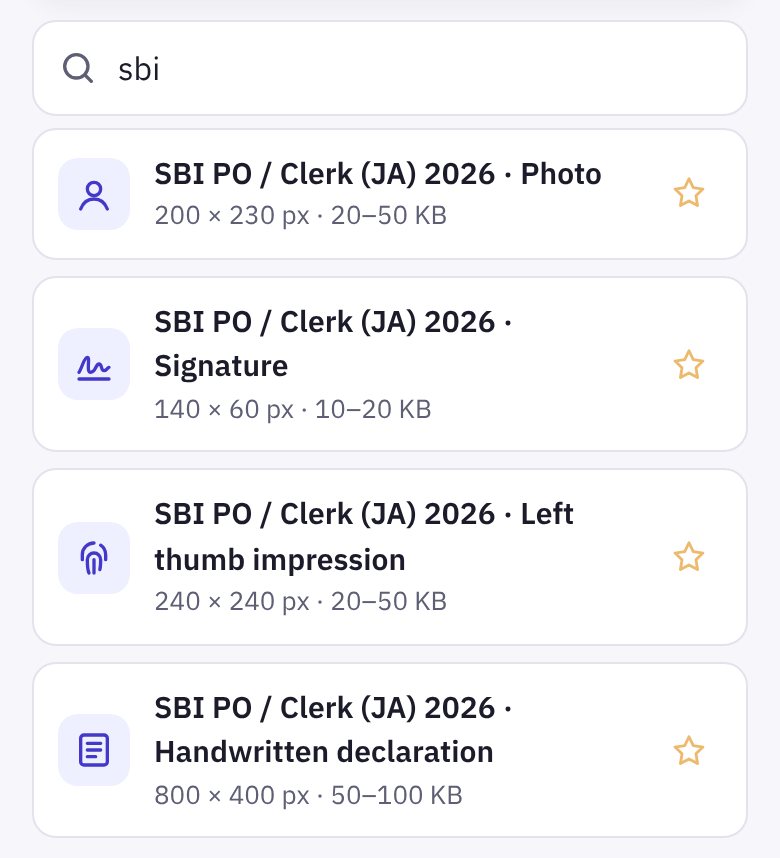
- Type in the search box, for example "SBI", "NEET photo" or "PAN signature". Or scroll the lists: Exams, Banks, Railways, ID and tax, and PDF tools and custom size.
- Tap the item you need, such as Photo or Signature.
The presets cover SSC, UPSC, NEET (UG), JEE (Main), SBI PO and Clerk, RRB and PAN. If your form isn't there, use Custom size (step 7).
2Check the rules
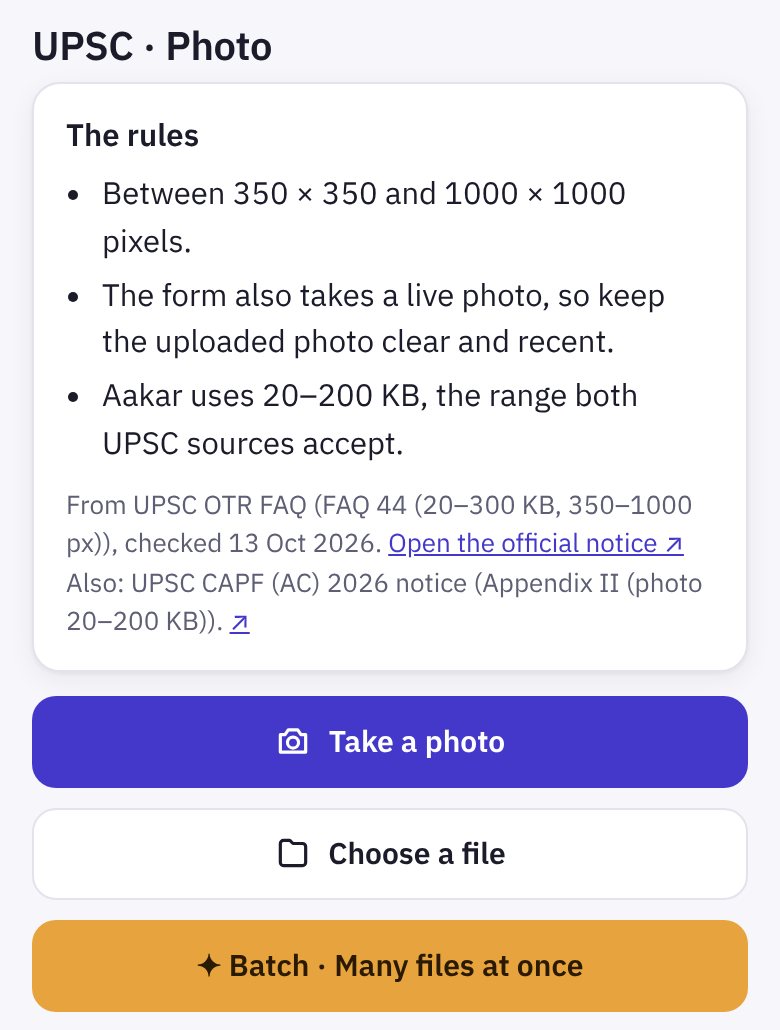
Each preset opens with The rules: the pixels, file size in KB, format and DPI the notice asks for. Underneath, it says which notice they come from and when Aakar checked it, with Open the official notice ↗.
Then choose how to add your picture:
- Take a photo opens the camera.
- Choose a file picks a photo or scan you already have.
Some forms, such as the SSC and RRB photos, take your photo live on their own website. Aakar says "Nothing to make here" for those.
3Add your photo and line it up
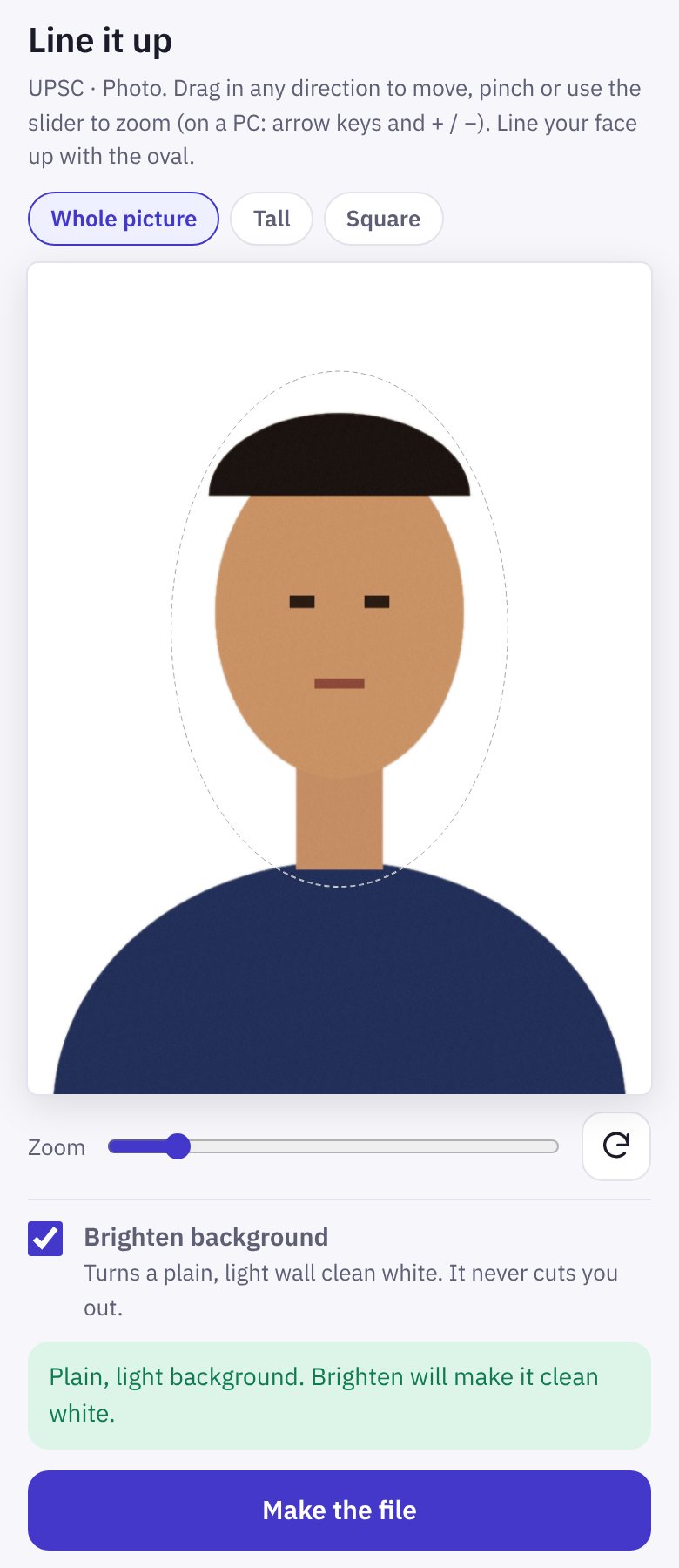
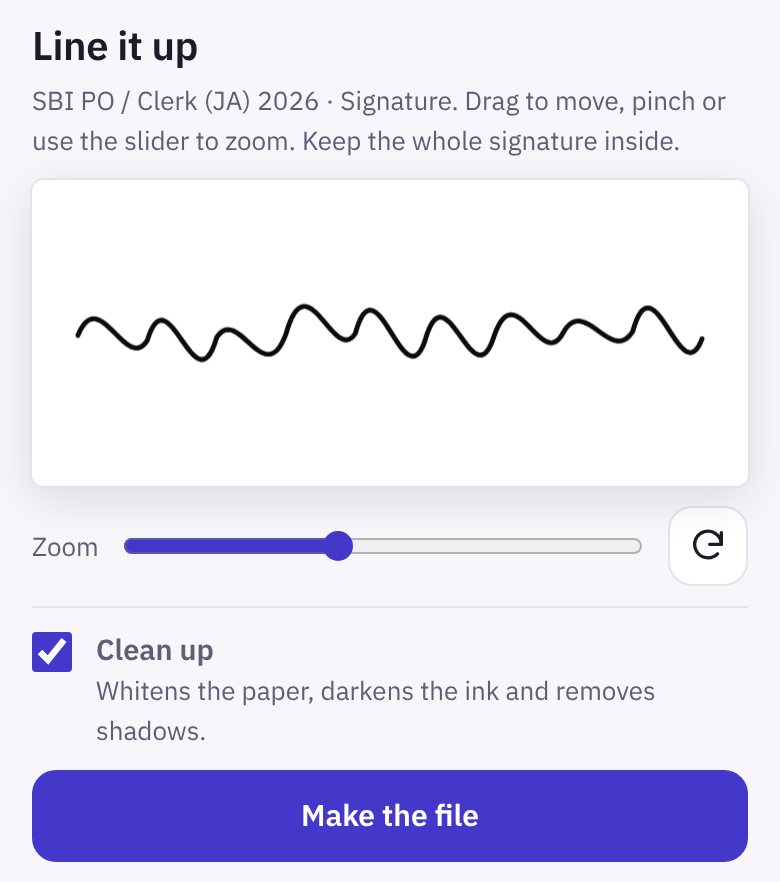
The Line it up screen shows your picture in a frame of the right shape.
- Move it by dragging, in any direction.
- Zoom with two fingers or the Zoom slider. On a PC, the arrow keys move it and
+and−zoom. - For a photo, line your face up with the oval.
- Brighten background turns a plain, light wall clean white. It never cuts you out. If the background is busy or dark, Aakar warns you so you can retake it against a plain light wall.
Then tap Make the file.
4Save the file
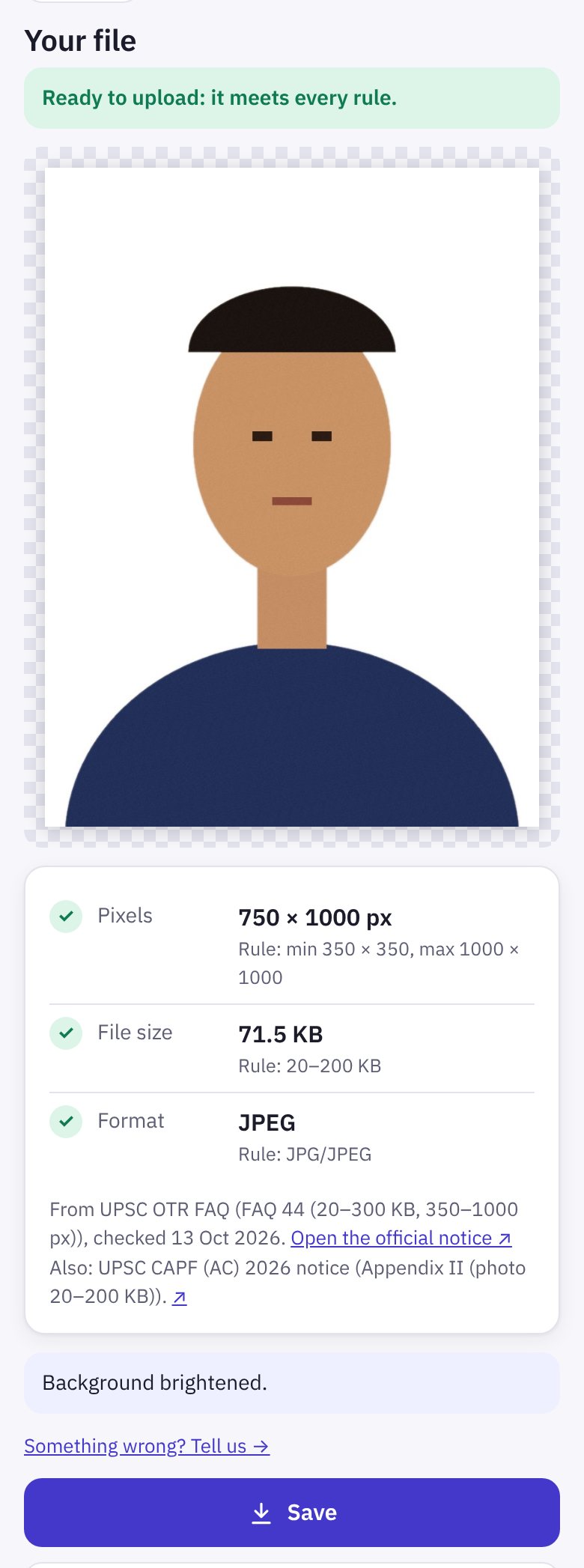
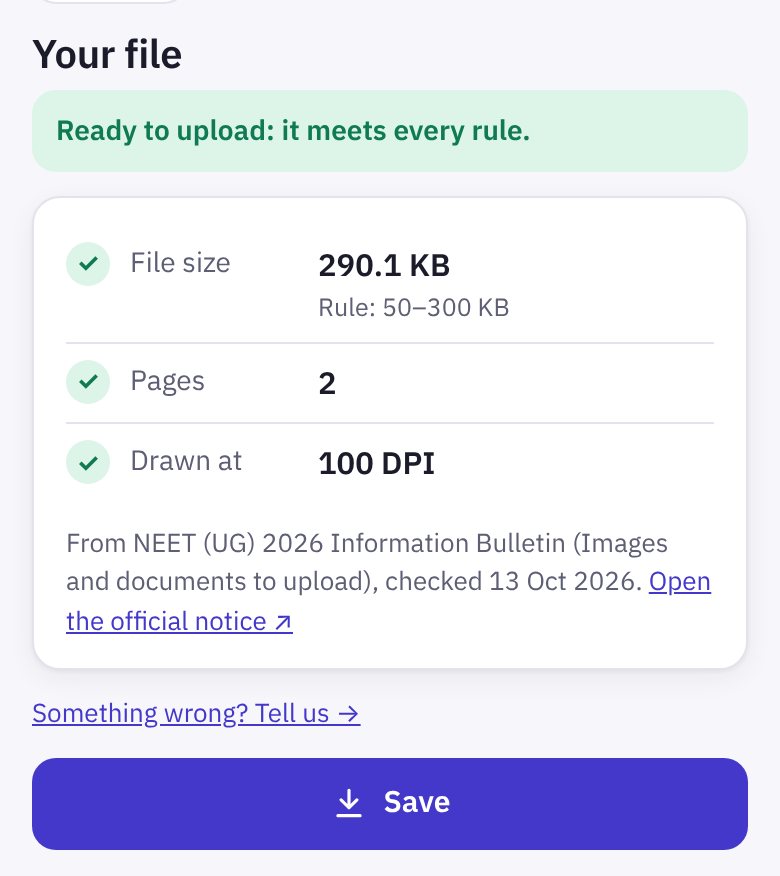
Your file shows the finished picture and a pass check: each rule (pixels, file size, format, DPI) gets a ✓ when the file meets it.
- "Ready to upload: it meets every rule" means you can use it as it is.
- Tap Save. The file goes to your Downloads, ready to upload on the form's website. On a phone you may also see Share.
- Edit again takes you back to the frame; Another file starts a new one for the same form.
If a line is red, the note under it says what to change, such as cropping closer or using a sharper photo.
5Signatures, thumbs and declarations
- Signature: sign on plain white paper, in the ink colour your notice asks for, and take a photo of it. Keep Clean up ticked: it whitens the paper, darkens the ink, removes shadows and crops to the ink.
- Thumb and finger impressions work the same way.
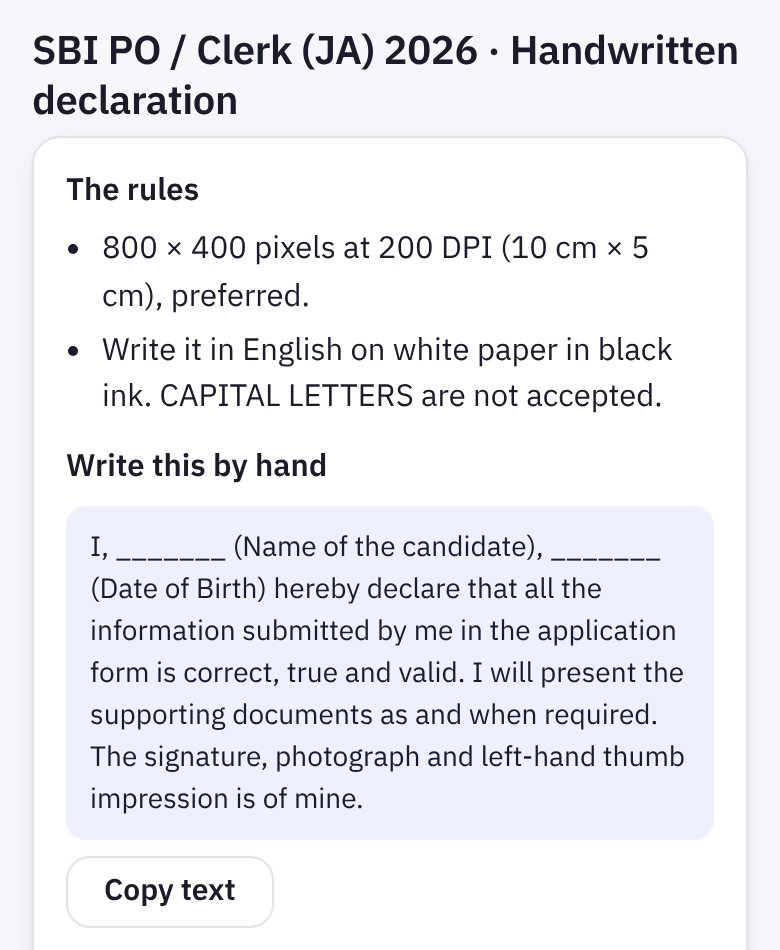
- Handwritten declaration (SBI): the preset shows the exact text under Write this by hand. Tap Copy text if you want it on your screen while you write, then photograph the page.
6PDFs
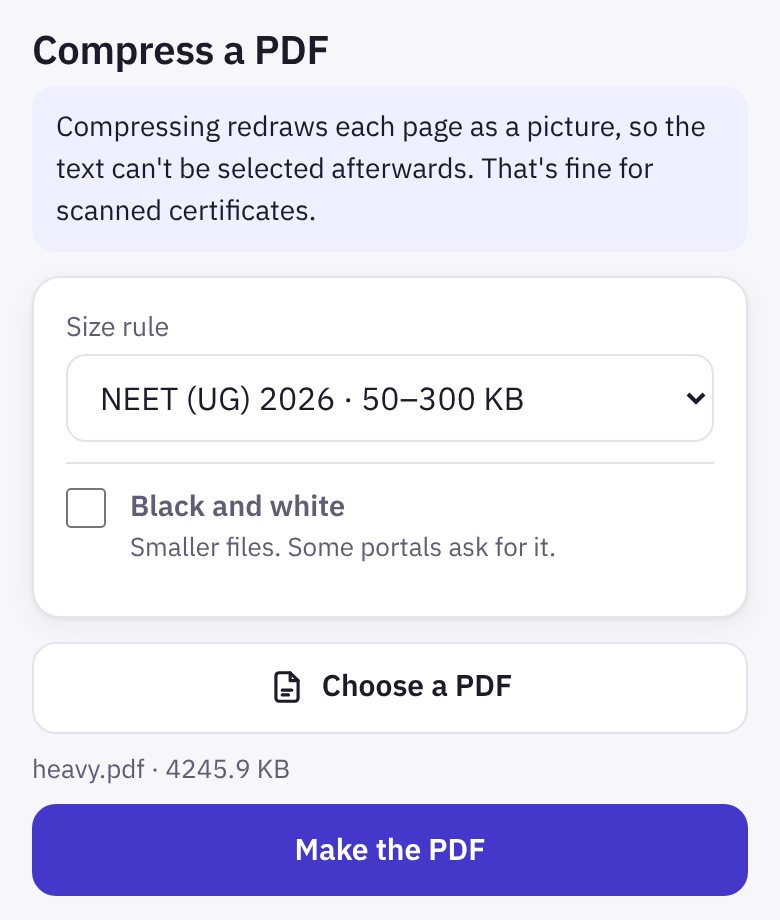
Compress a PDF, from the PDF tools list or a form's certificate preset:
- Tap Choose a PDF.
- Pick the Size rule: a form's own rule, or your own smallest and largest size. Tick Black and white if the portal asks for it.
- Tap Make the PDF, then Save.
Compressing redraws each page as a picture, so the text can't be selected afterwards. That's fine for scanned certificates. If the PDF already fits, Aakar says so. A PDF with a password has to have the password removed first.
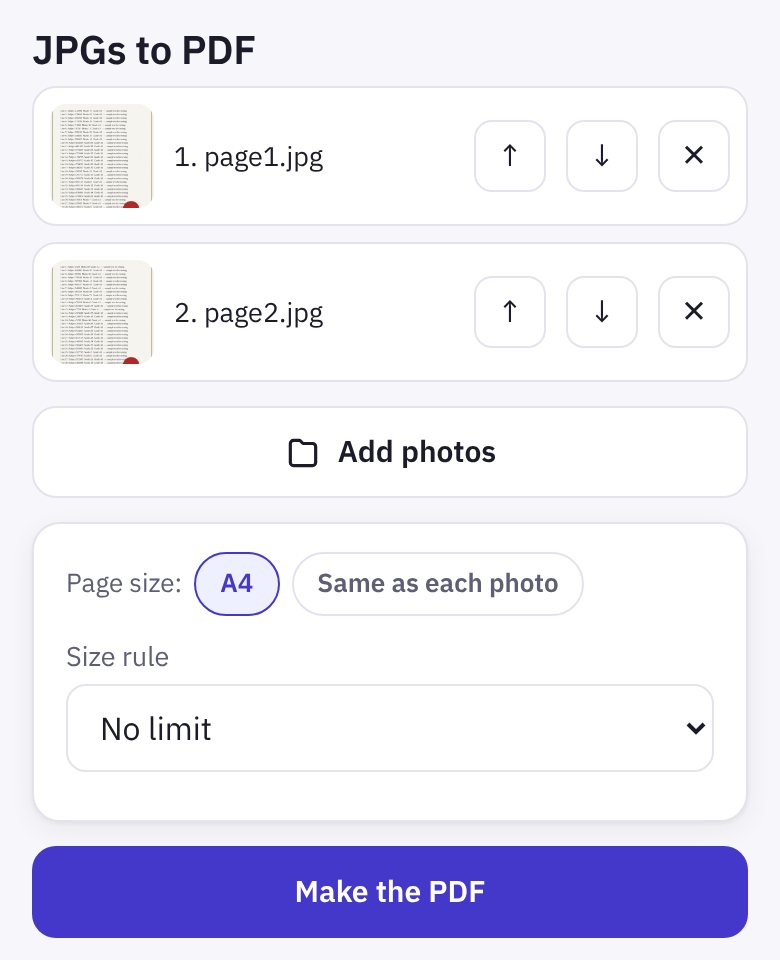
JPGs to PDF turns photos of pages into one PDF: tap Add photos, put them in order with the arrows, choose the page size (A4 or Same as each photo), and tap Make the PDF. Lite makes PDFs of up to 3 pages; Pro has no limit.
7Custom size
For a form that isn't in the list, open Custom size under PDF tools and custom size.
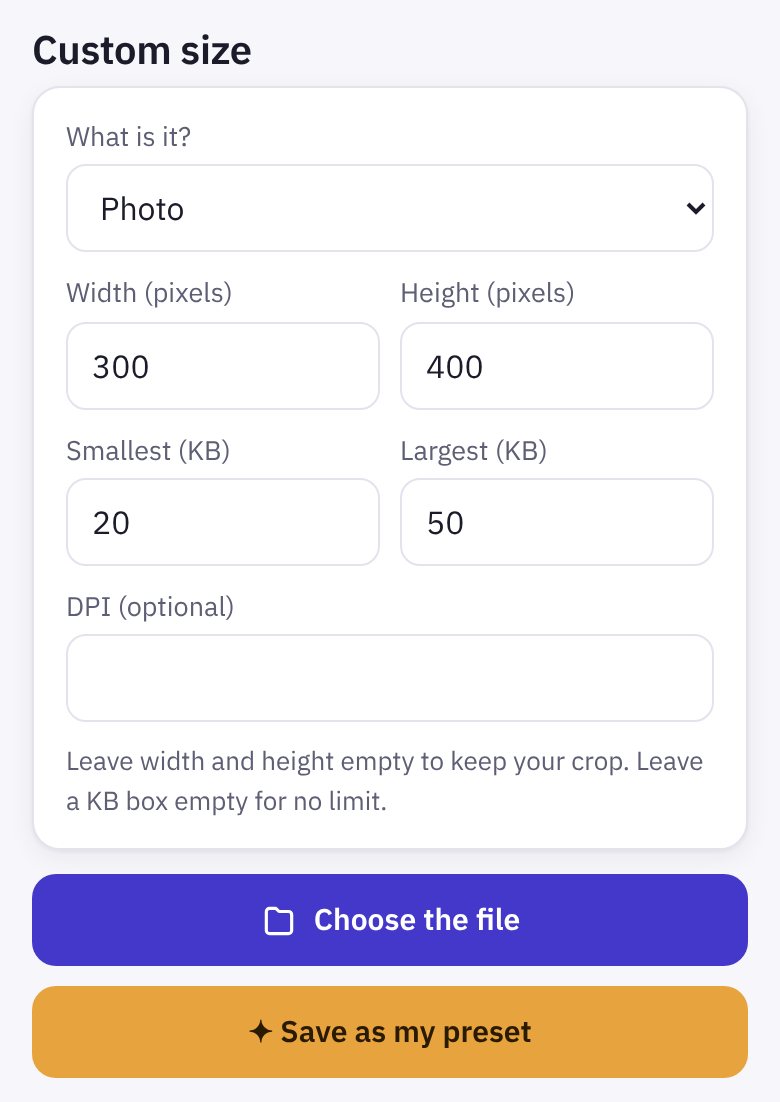
- Choose What is it?: a photo, a signature or thumb, or a document or ID.
- Type the width and height in pixels, and the smallest and largest size in KB from your form's notice. DPI is optional.
- Tap Choose the file and carry on as in steps 3 and 4.
Leave the width and height empty to keep your crop, or a KB box empty for no limit. With Pro, ✦ Save as my preset keeps the size for next time.
8Activate Pro Pro
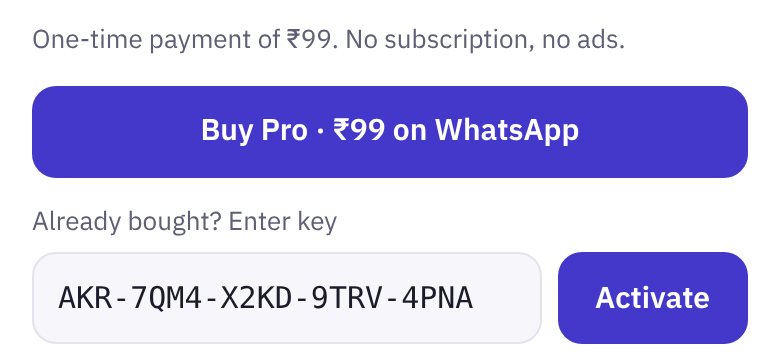
Pro is for doing many at once, for example at a cyber café or a form-filling centre. Buy it from ✦ Get Pro or Buy Pro · ₹99 on WhatsApp. Your key arrives by email from hello@stroban.app (check spam the first time). It looks like AKR-XXXX-XXXX-XXXX-XXXX.
- Tap ⚙ at the top right to open Settings.
- Under Aakar Pro, paste the key and tap Activate.
- The badge at the top changes from Lite to Pro.
With Pro, a preset's Batch button makes many files at once and Save all (ZIP) saves them together. In a batch, each picture is centred automatically. Tap the star next to a preset to keep it in Favourites at the top. To use Pro on another phone, paste the same key there.
✓Good to know and help
- Your files never leave your phone. Aakar does all the work on your device. Only a licence key you activate, or a feedback message you choose to send, ever reaches Stroban.
- Check the latest notice before you upload. Exam bodies change their rules, and Aakar shows the date it last checked each one. Aakar is not connected to any exam body or government department.
- Install it. ⚙ Settings → Install Aakar adds it to your home screen, and it works offline. On an iPhone: Share, then Add to Home Screen. Once installed on Android, you can also share a photo or PDF from your gallery or files straight to Aakar.
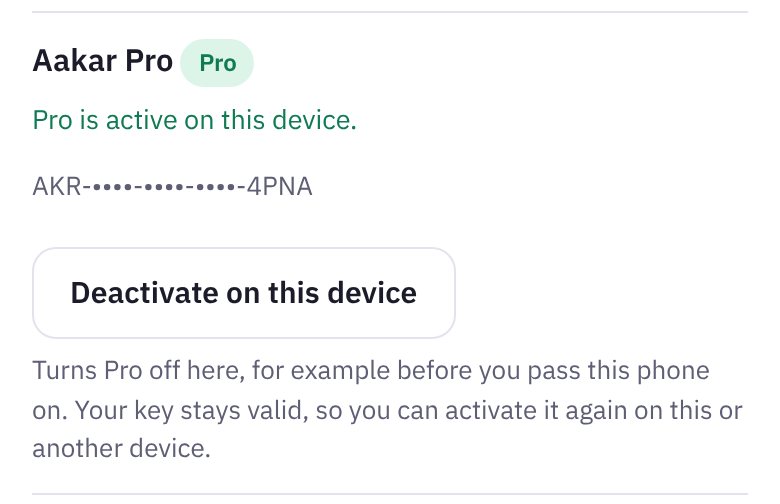
- Shared phone or a café computer? Use ⚙ Settings → Deactivate on this device before you leave it. Your key keeps working.
+91 83673 54510
hello@stroban.app
Tap Feedback at the top of the app. If we use it, Lite users get Pro at 50% off.